Running a Retrospective
Everything on the retrospective board: hidden cards, the timer, voting, emoji reactions, grouping duplicates, creating and linking Jira issues, and archiving
Updated
Open a retrospective from the list and you are on the board. Every change anyone makes appears for everyone else immediately, so the team can work on it together in a call or contribute at different times.
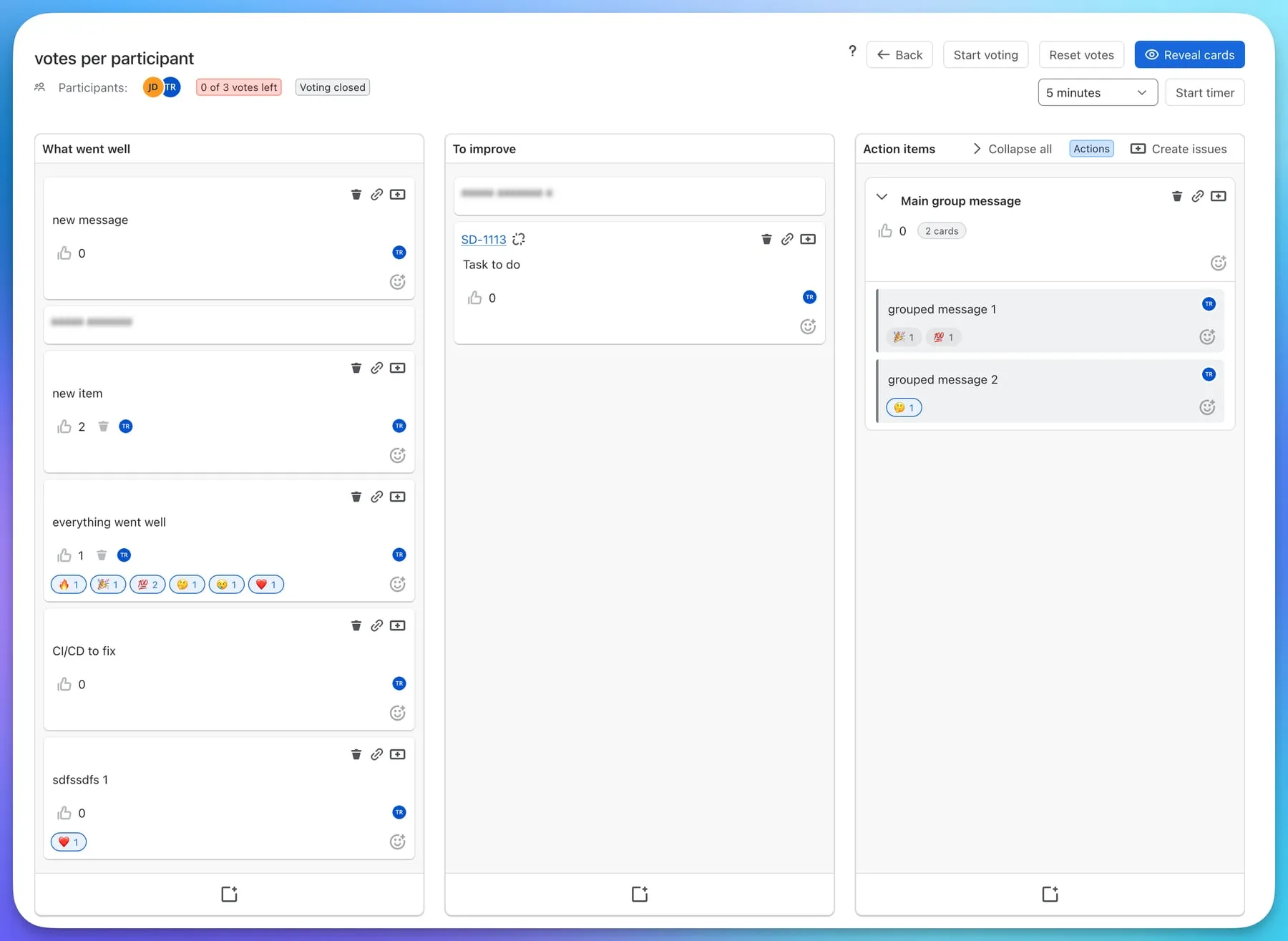
The header
- Participants: the avatars of everyone who has the board open. On an anonymous board the list is replaced by an “Anonymous retrospective” label.
- Votes left: how many of your votes you still have, for example 2 of 3 votes left.
- Voting open / Voting closed: shown when the board requires a voting phase.
- Back returns to the list.
- Start voting / Stop voting, Reset votes, Hide cards / Reveal cards and the timer are the facilitator’s controls, described below. They are available to the creator, or to everyone if the board allows anyone to edit.
Adding cards
Press the + at the bottom of a column and type. Click a card’s text to edit it, and the bin icon to delete it. Your own cards are always readable to you.
Hiding and revealing cards
Press Hide cards while people are writing: everyone sees their own cards, and other people’s cards are blurred. Press Reveal cards when it is time to read them together. This prevents the first card in a column from steering everyone else.
The timer
Pick a duration from the presets, or choose a custom number of minutes, and press Start timer. The default for a retrospective is five minutes. The timer turns amber during the last minute and shows Time’s up when it ends; it does not change anything on the board by itself.
Voting
Press the thumbs-up on a card to spend a vote, and again to take it back. The card shows its total and, unless the board is anonymous, who voted.
- The vote budget per person is set in the board’s settings. The header always shows how many votes you have left.
- If the board allows only one vote per card, the thumbs-up is disabled on a card you already voted for.
- If the board requires a voting phase, votes can only be cast and withdrawn between Start voting and Stop voting.
- Reset votes clears every vote on the board after a confirmation.
Emoji reactions
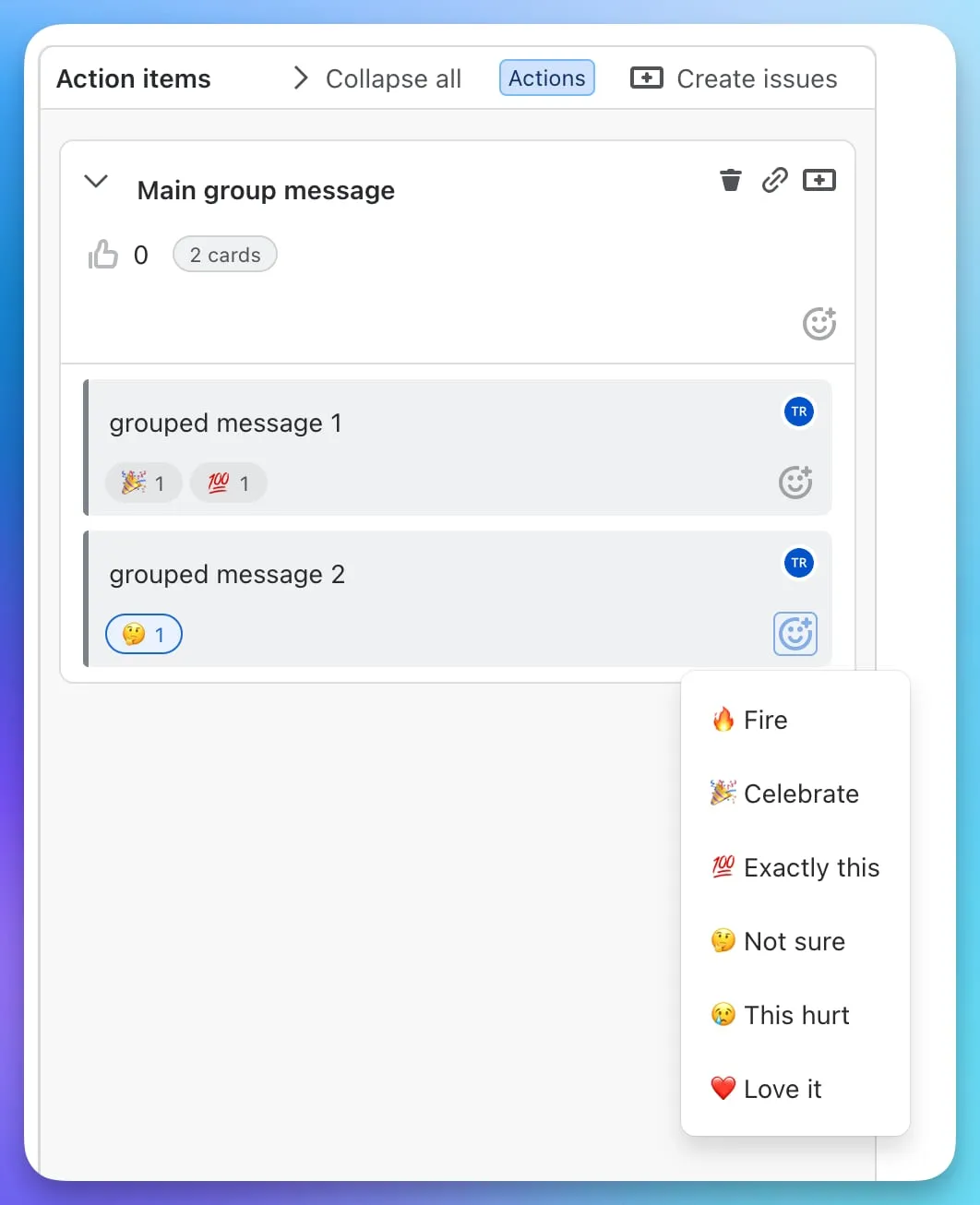
Press the smiley on a card and pick one of six reactions: 🔥 Fire, 🎉 Celebrate, 💯 Exactly this, 🤔 Not sure, 😢 This hurt, ❤️ Love it. Reactions are shown as chips with a count under the card, and hovering a chip names who reacted, unless the board is anonymous. Reactions are free: they never come out of the vote budget and never count as votes. They can be switched off per board.
Grouping duplicates
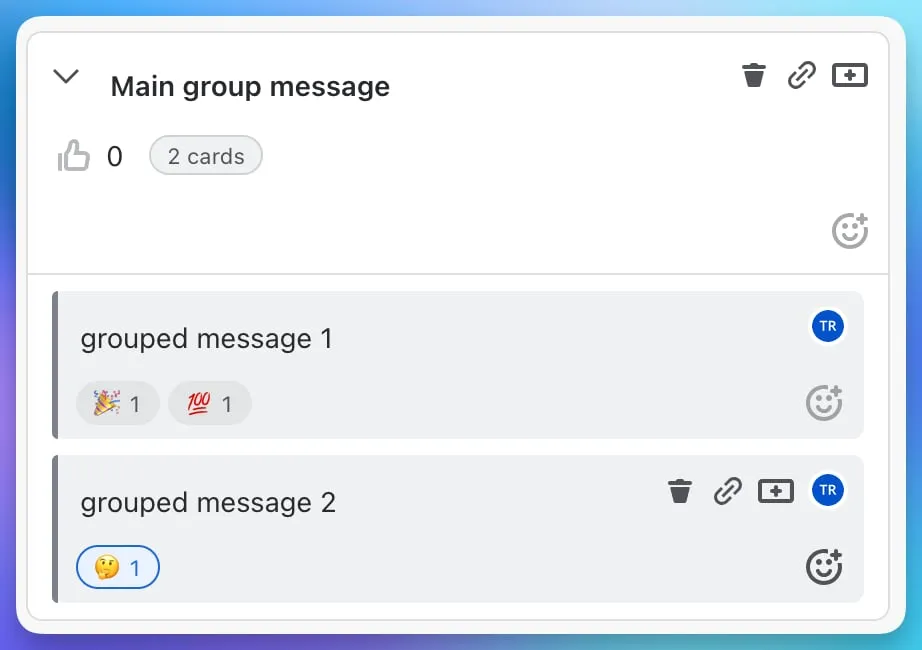
Drop a card onto the middle of another card to make a group. Both cards stay intact inside the group, which is a card in its own right with:
- its own title, which you can edit,
- its own votes and reactions,
- a cards badge with the number of members.
Fold a group with the chevron to keep the column short, or use Collapse all and Expand all in the column header. A folded group shows the members’ avatars and a preview of their text. Drag a group to move all its cards at once, or drag a card out of the group to make it standalone again. Groups can be created in any column.
Turning cards into Jira issues
One card
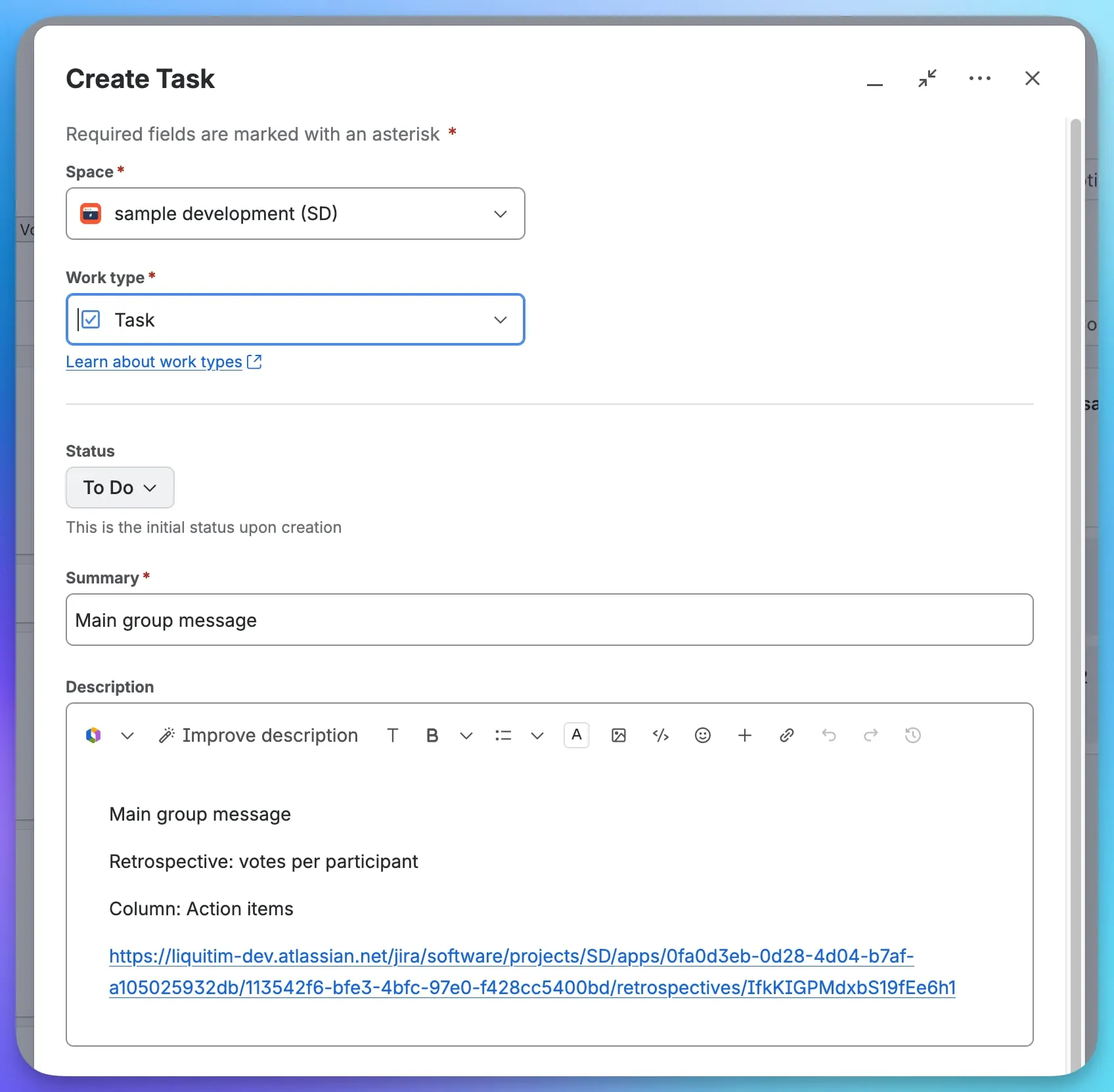
Press the create issue icon on a card. Jira’s own create dialog opens, prefilled:
- the summary is the card’s text (shortened to 120 characters if needed),
- the description repeats the text, names the retrospective and the column, and links back to this board.
When you create the issue, its key is attached to the card and to the retrospective in the list. Open it from the card at any time.
The whole action column
If the board’s settings mark a column as the action column, its header shows an Actions label and a Create issues button. Press it and the board walks through every card in the column that has no issue yet, opening one prefilled dialog after another. Cancel at any point; the issues already created are kept.
Linking an existing issue
Press the link icon on a card and enter an issue key such as PROJ-123. The key is checked before it is attached. A card can carry several issues, and each can be unlinked again from the card; unlinking never changes the Jira issue.
Archiving
When the retrospective is over, Archive it from the list. The board becomes read-only, with its cards, groups, votes, reactions and issue links frozen, and moves to View archived. Archiving cannot be undone.
Working across time zones
Nothing on the board expires. People can add cards and react whenever they are online, and the facilitator opens voting when the team actually meets.